Hard Disk - Allocate more space:
About:
This document explains how to allocate more space to the physical harddisk.
How to:
Do NOT do this unless you are a 100% sure this is your problem!
Learn how to add a server here:
Microsoft Remote Desktop - Add Server
-
Click the folder, then the 'Local Disk (C:). Check how much space there is left.

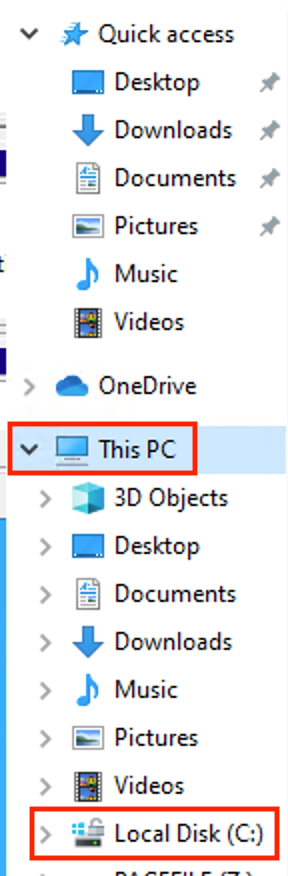
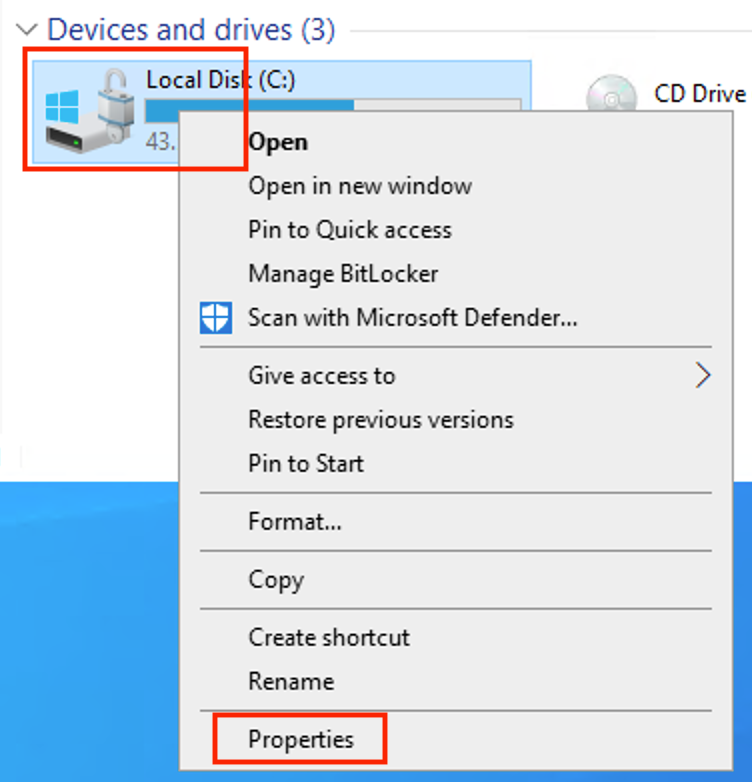
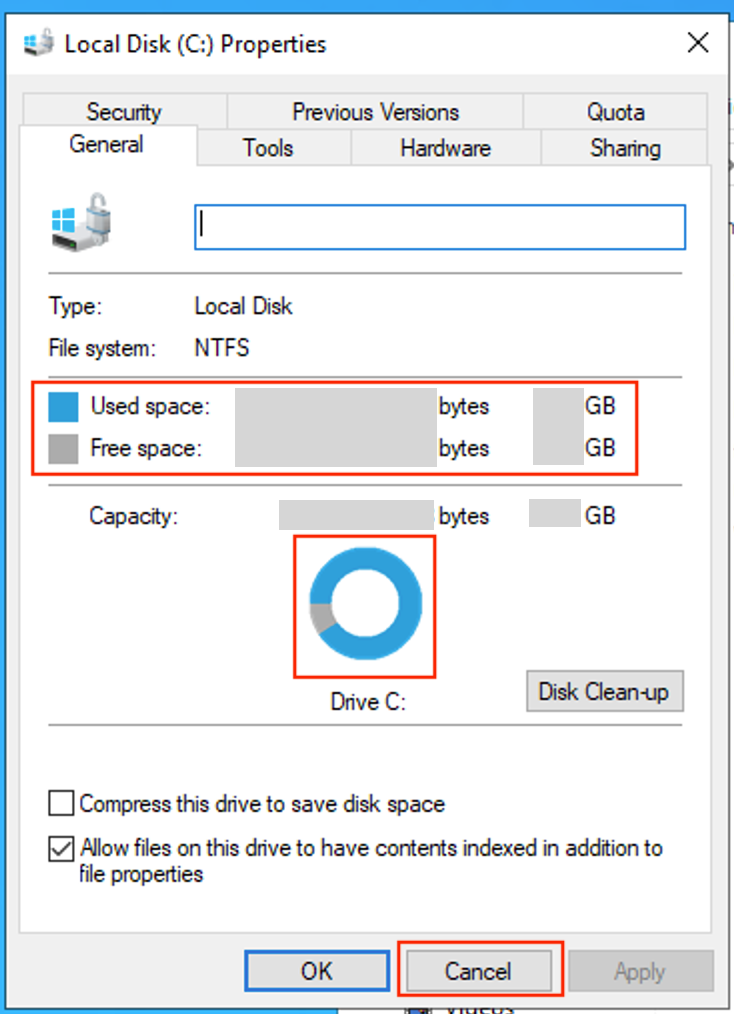
-
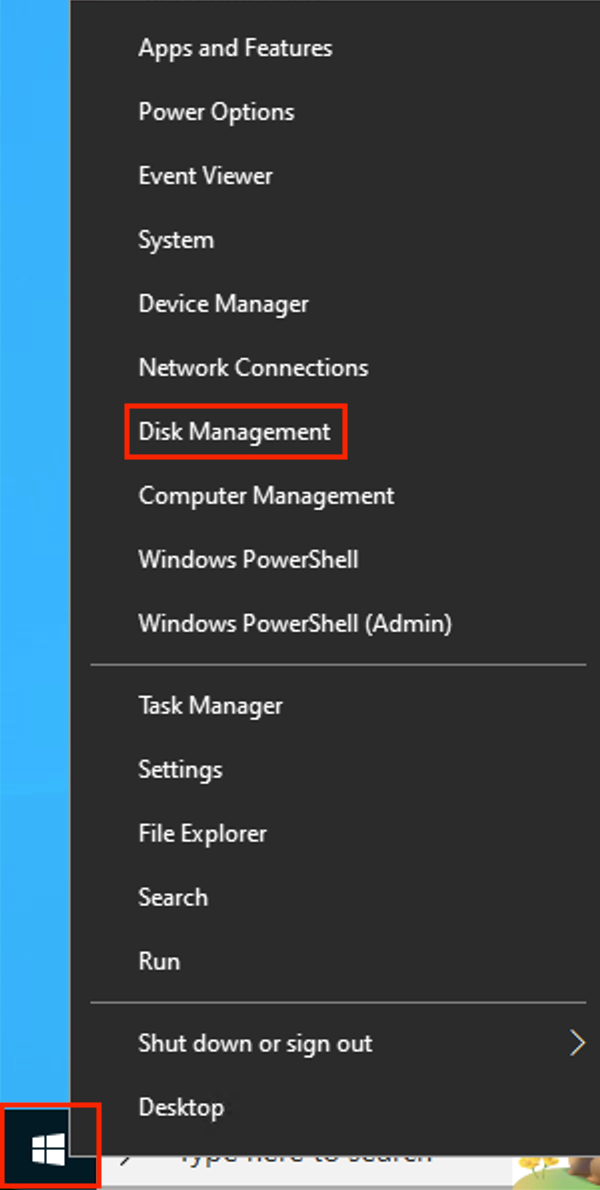
Then rightclick the ‘Flag’ in the left corner and choose the option ‘Disk Management’.
-
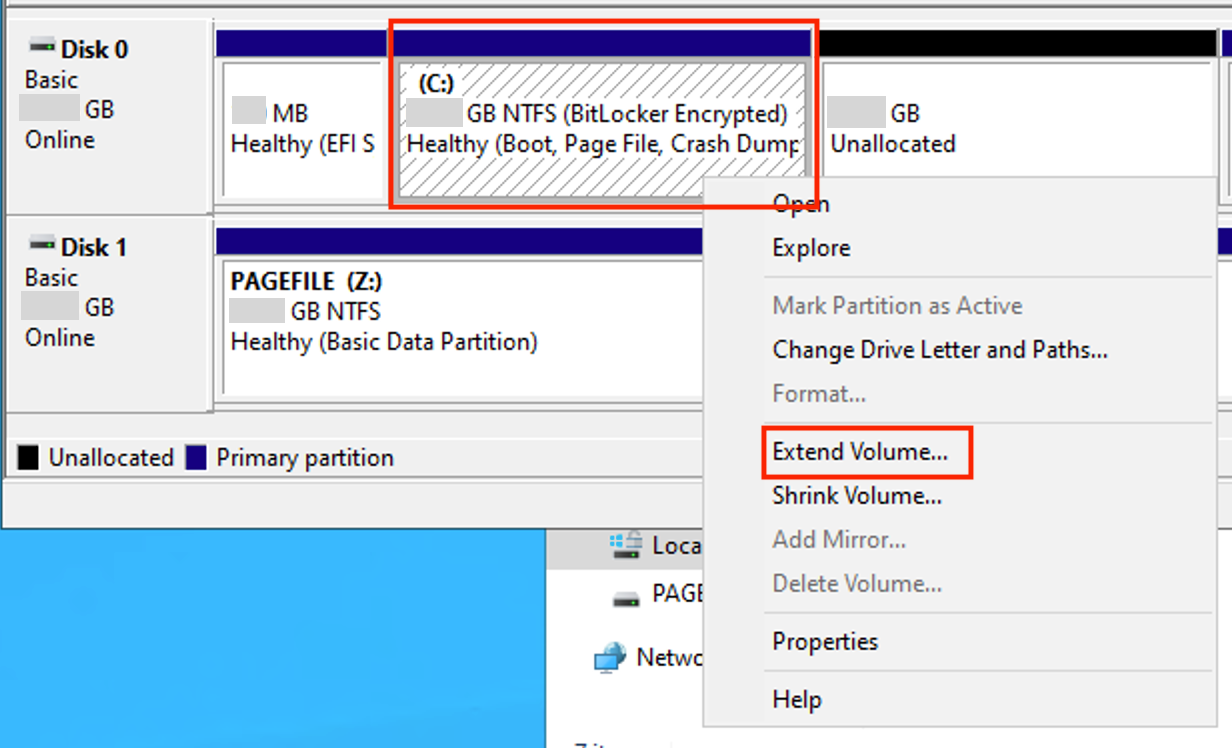
Rightclick the (C:) partition. Choose the option ‘Extend Volume…’
Note that there are ‘Unallocated space' to the right of the (C:) disk. This is the space we are going to open up.
-
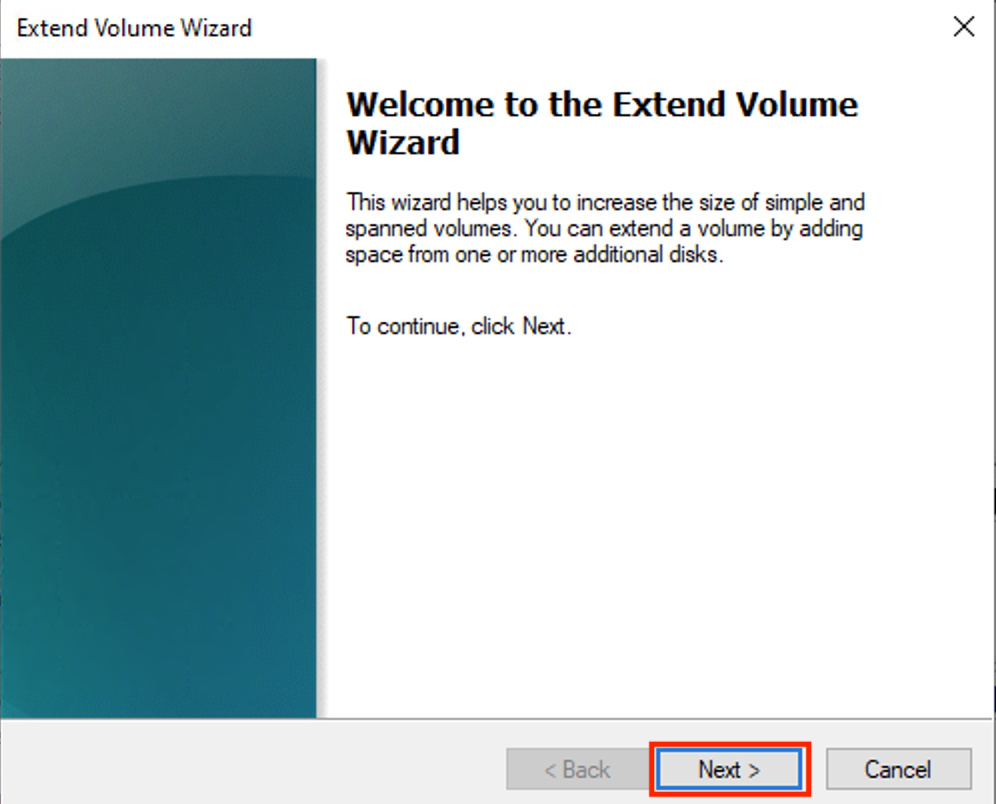
Follow the Wizard. (Wizard is the name of the process).
Click:
1, Next
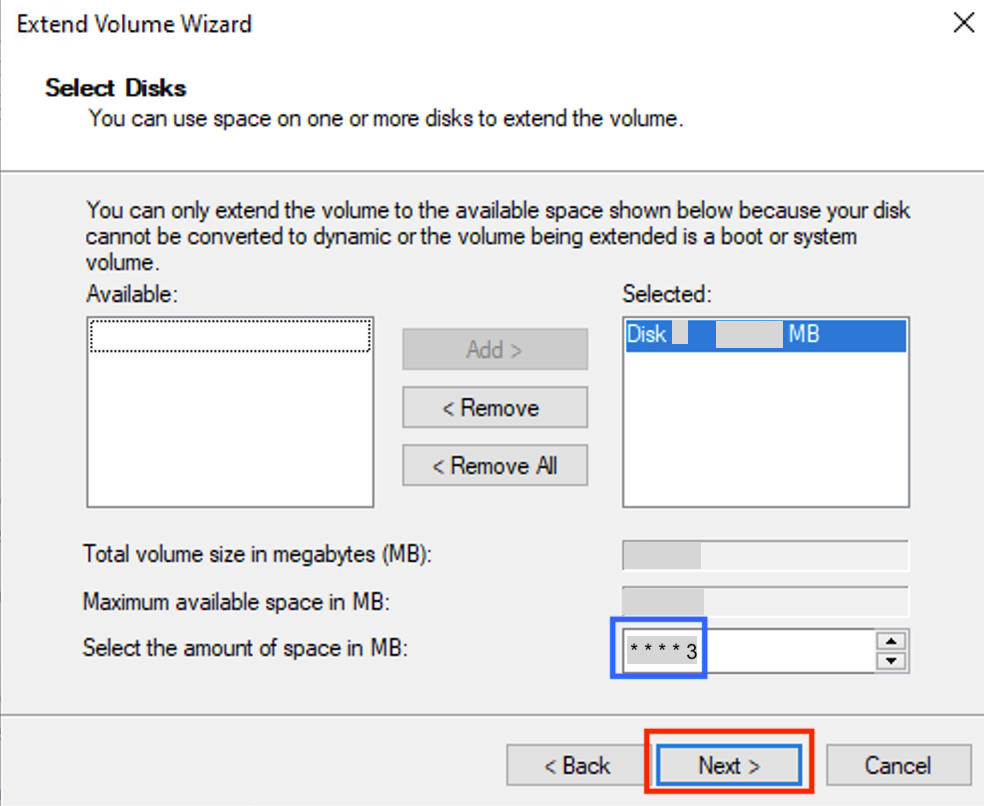
2, In this case, click ‘Next’ without change.
If you don’t want to allocate the whole unallocated space, change the number in the blue scare to ‘* * * * 3' or ‘* * * * 4’, depending on how much you want.
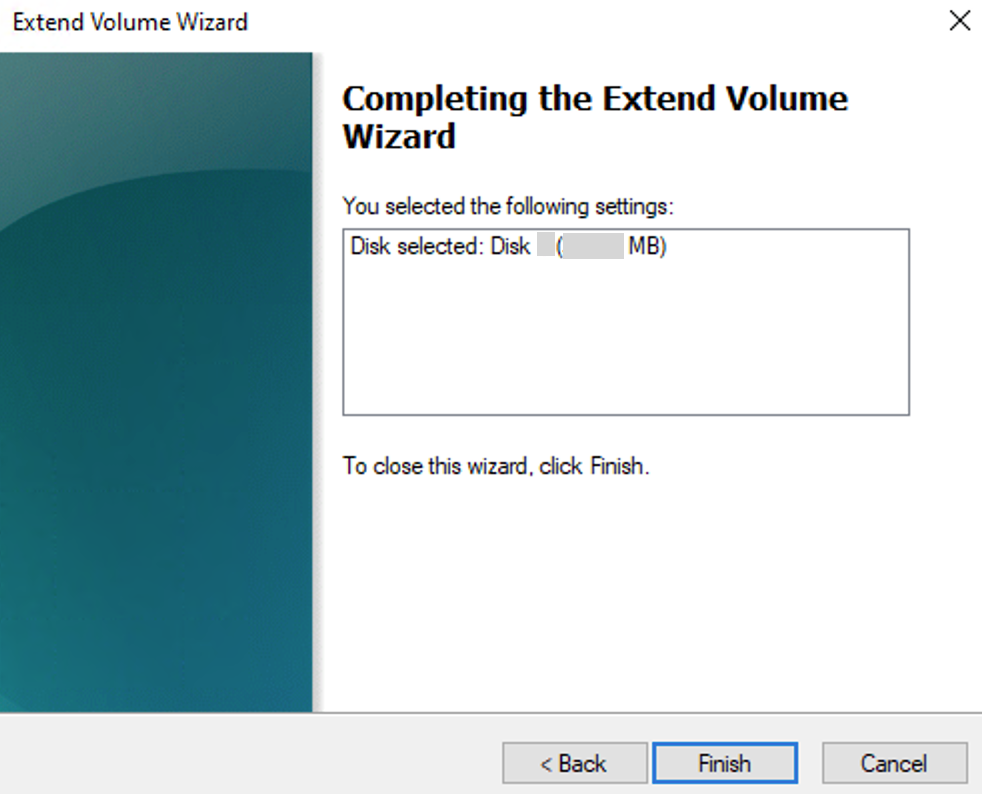
3, Click 'Finish'
- Check if it worked.
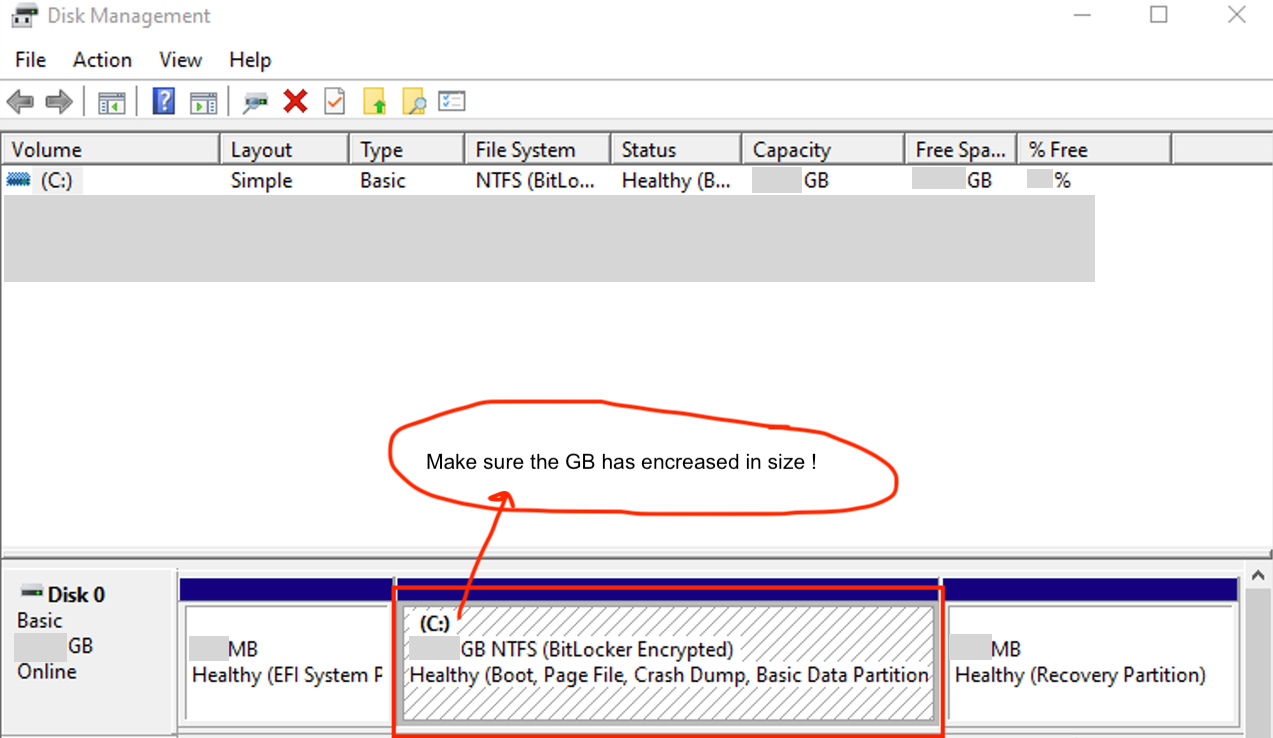
And you are done. 😄