Outlook - Shared mailbox, add From Field:
About:
This document explains how to enable and use the From field in Outlook Windows so you can send emails from a shared mailbox. Instructions are included for both the Outlook desktop client and Outlook on the web.
What is From Field in a Shared Mailbox:
The From field allows you to choose which mailbox an email is sent from. This is required when sending emails on behalf of a shared mailbox. Once configured, Outlook remembers the shared mailbox and makes it available for future emails.
Outlook Desktop client:
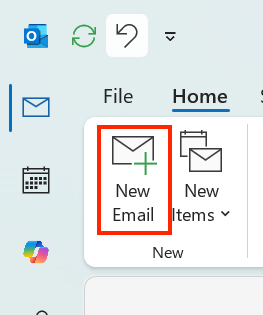
1, Open Outlook and select New Email.
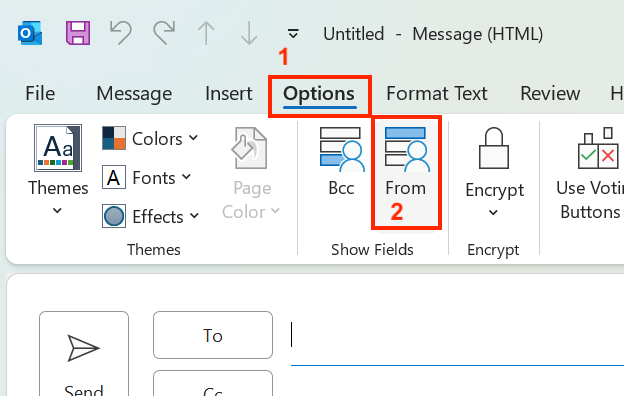
2, Select the Options tab, and choose From.
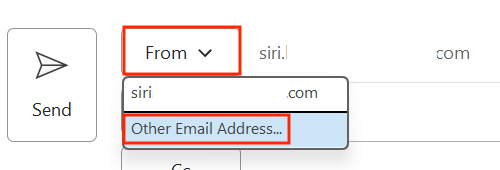
3, Then click From, choose the option Other Email Address
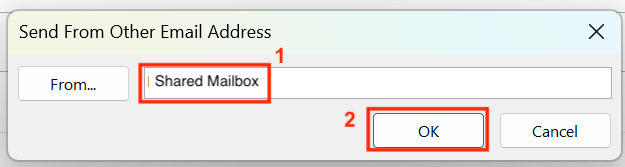
4, Then write the name of the Shared Mailbox. Click OK.
5, If multiple results appear, select the correct mailbox and select OK.
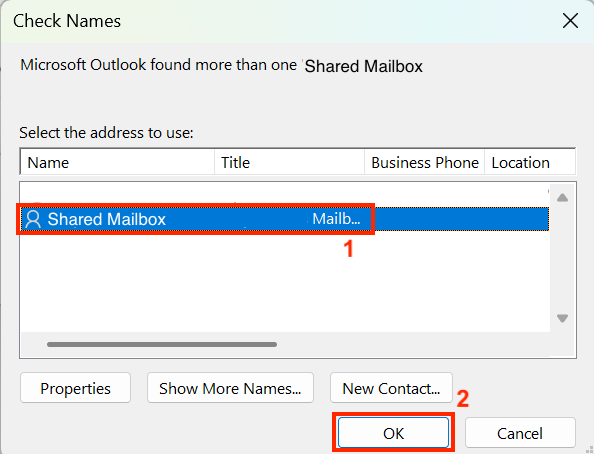
6, You can now send the email from the shared mailbox.
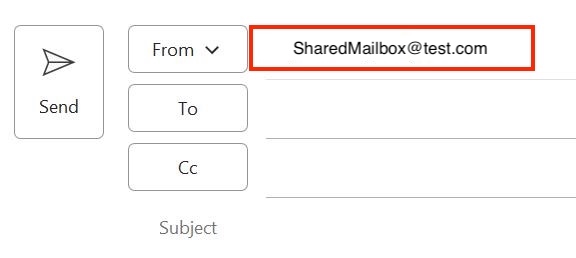
Outlook Desktop client:
1, Select the gear icon in the top-right corner.
2, Select View all Outlook settings.
3, Go to Mail and choose Compose and reply. Under Message format, enable Always show From.
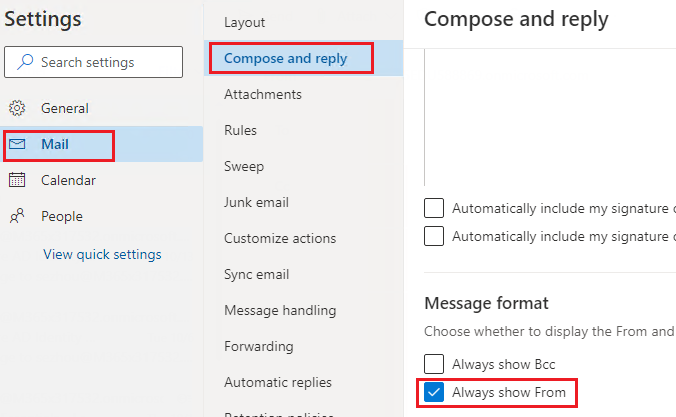
5, Select Save.
In future emails, you can select the drop-down arrow next to the From field and choose the shared mailbox directly without adding it again.
And you are done 😄