Windows - How to change your password:
About:
This document explains how to correctly change your company password on both Windows and macOS devices. Following all steps is important to ensure the new password is properly synced across Microsoft services and your local device.
What is your password used for?
Your company password is managed through Microsoft Entra ID (Azure AD) and is used for:
• Logging in to your computer
• Accessing Microsoft services
• Authenticating company applications
Windows:
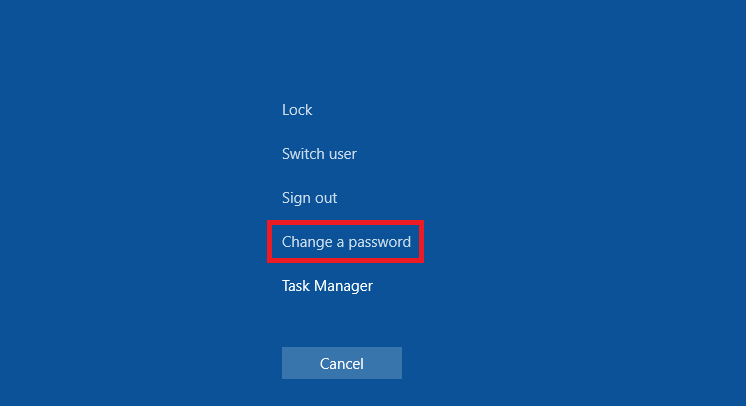
1, Press CTRL + ALT + DELETE
2, Select Change a password
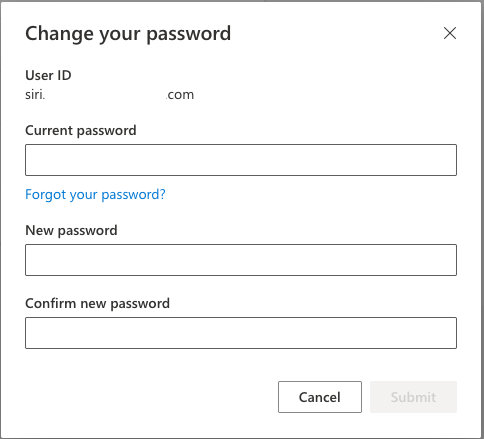
3, You will be redirected to Microsoft where you need to Authenticate again, with either Microsoft Authenticator 📱 or the Yubikey🔑.
4, Change your password and click Submit
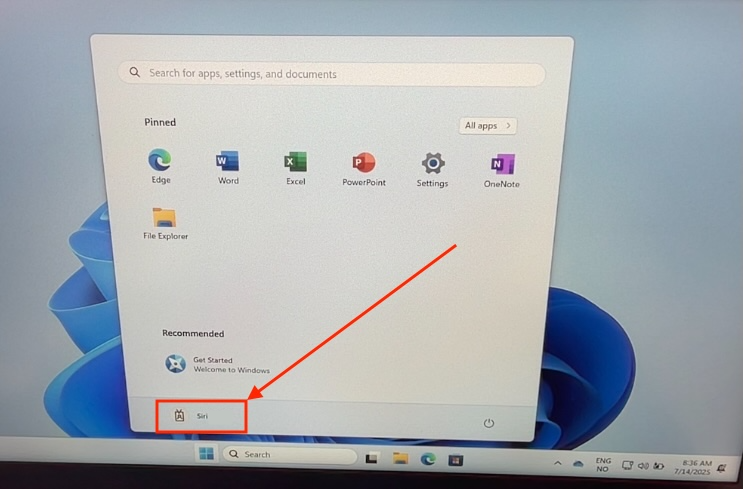
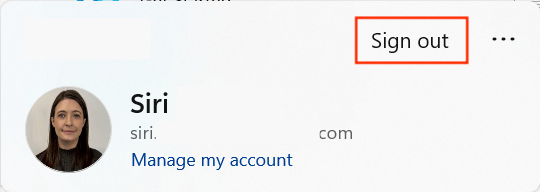
5, Then go back to the desktop of your machine. Click the Windows button and your **name.**Click the Sign out button.
6, Then choose the OTHER USER, and typ in your username (shortened email address) and password.
This is important for the password to be synced across all the platforms! Do not skip this one!
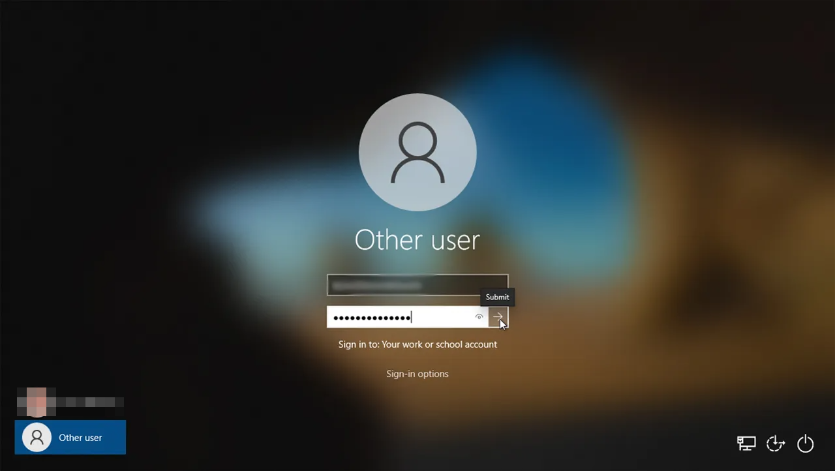
Mac:
On macOS, Jamf Connect ensures that your local Mac login password stays synchronised with your Microsoft account.
If the sync step is skipped, the Mac may continue using an old password and prevent login.
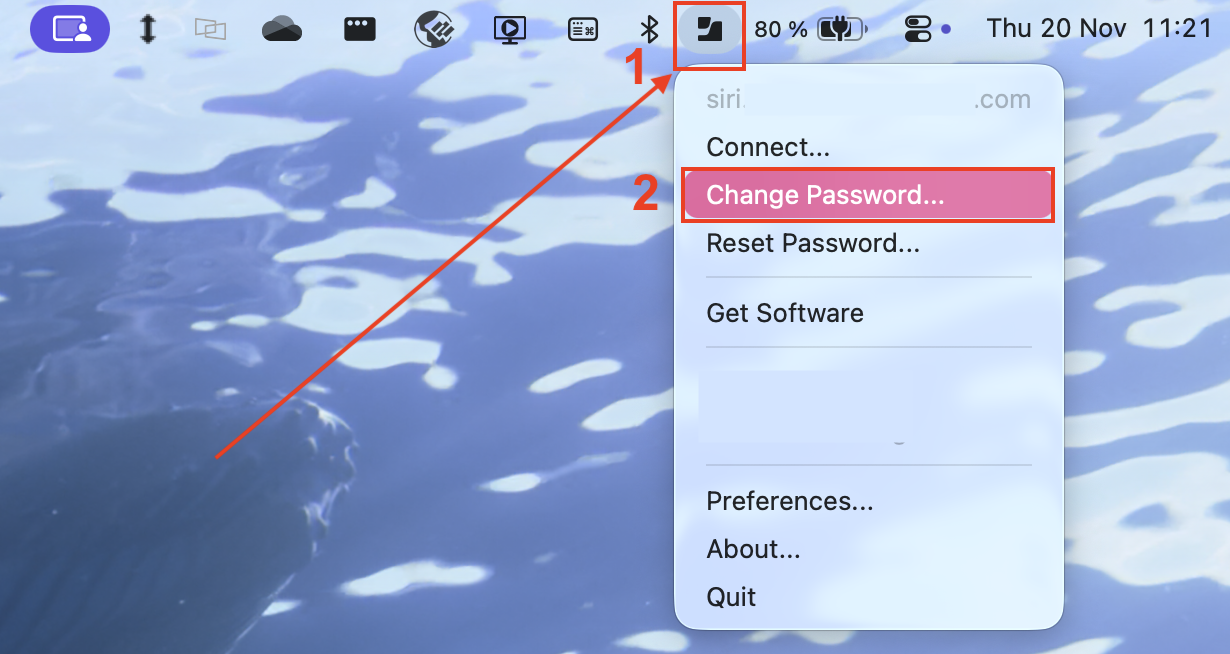
1, Look in the top right corner on your mac. You'll see this icon named Jamf Connect. Left click it and choose the option Change Password.
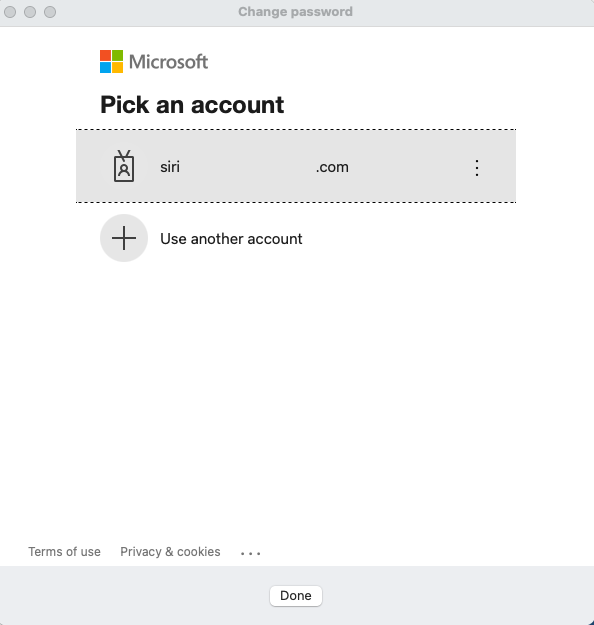
2, Choose your account
3, If you have a Yubikey choose the option **Sign in another way.**If you dont have a yubikey, continue with the Password and click Sign in.
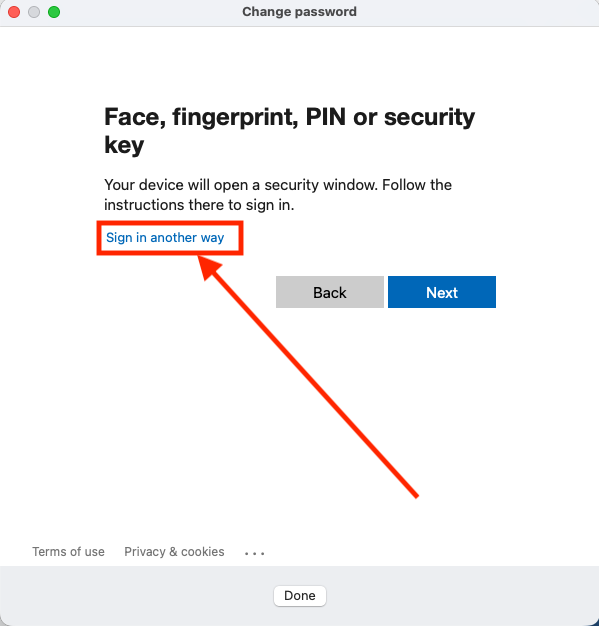
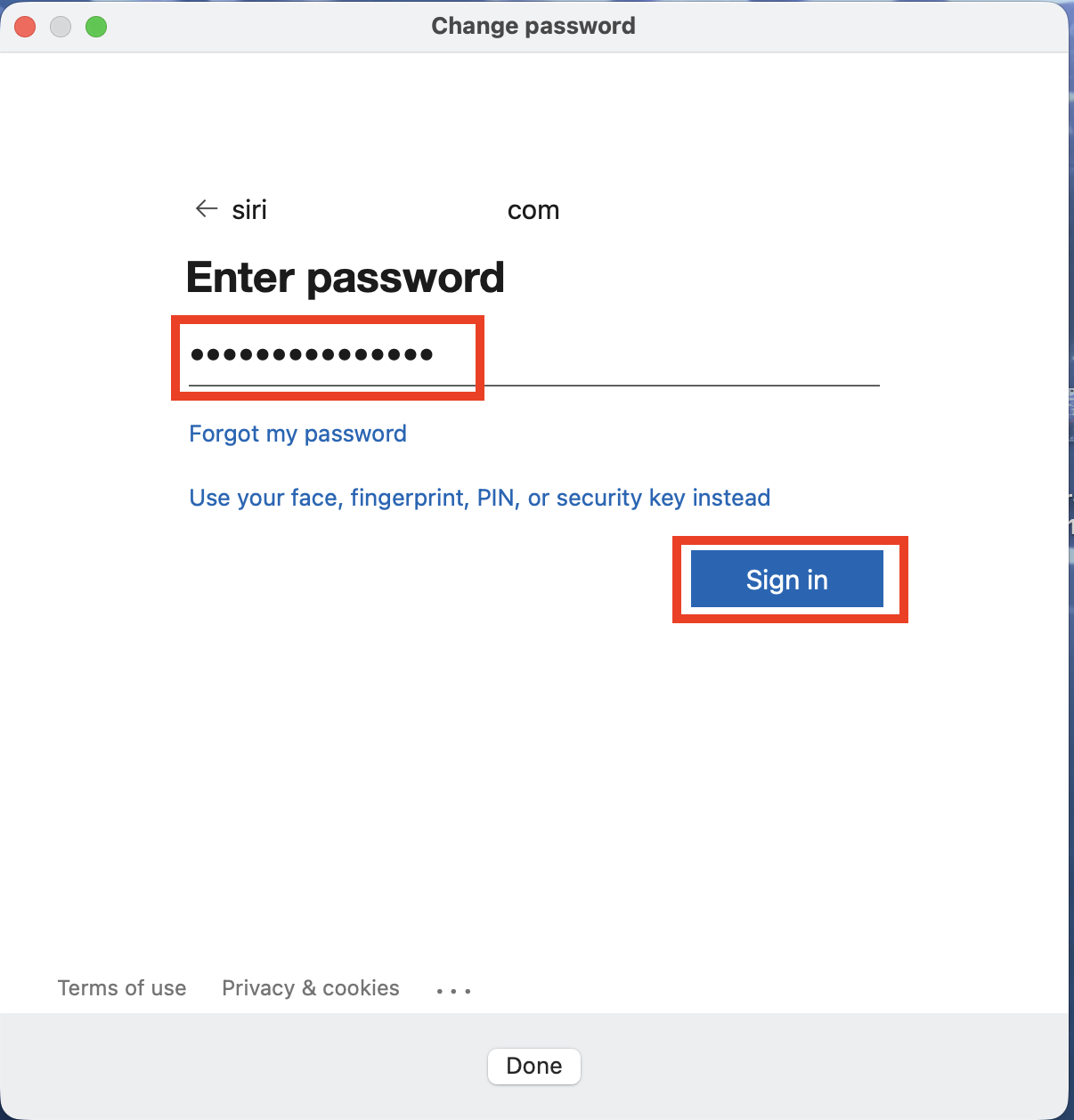
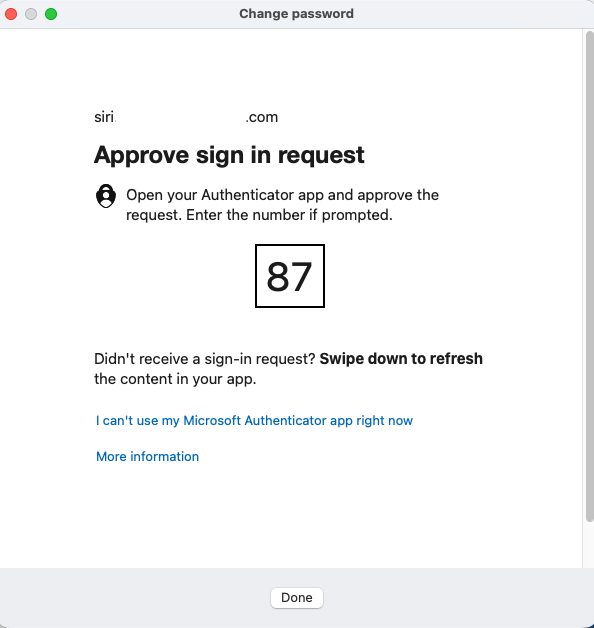
4, Then authenticate with Microsoft Authenticator on your phone.
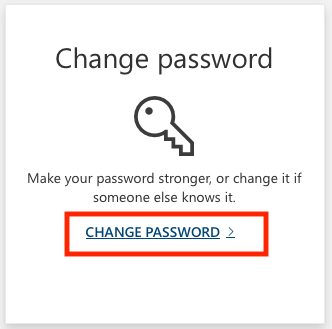
5, You will be redirected to Microsoft. Choose the option Change Password. Follow the setup.
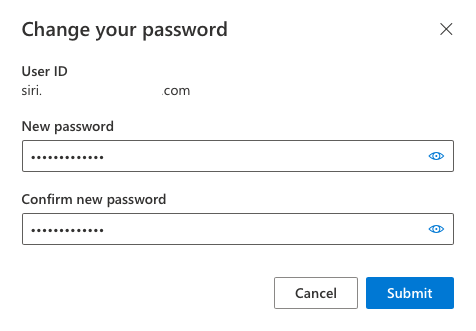
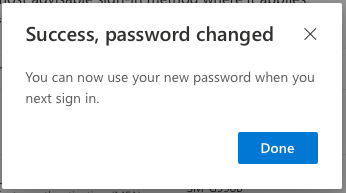
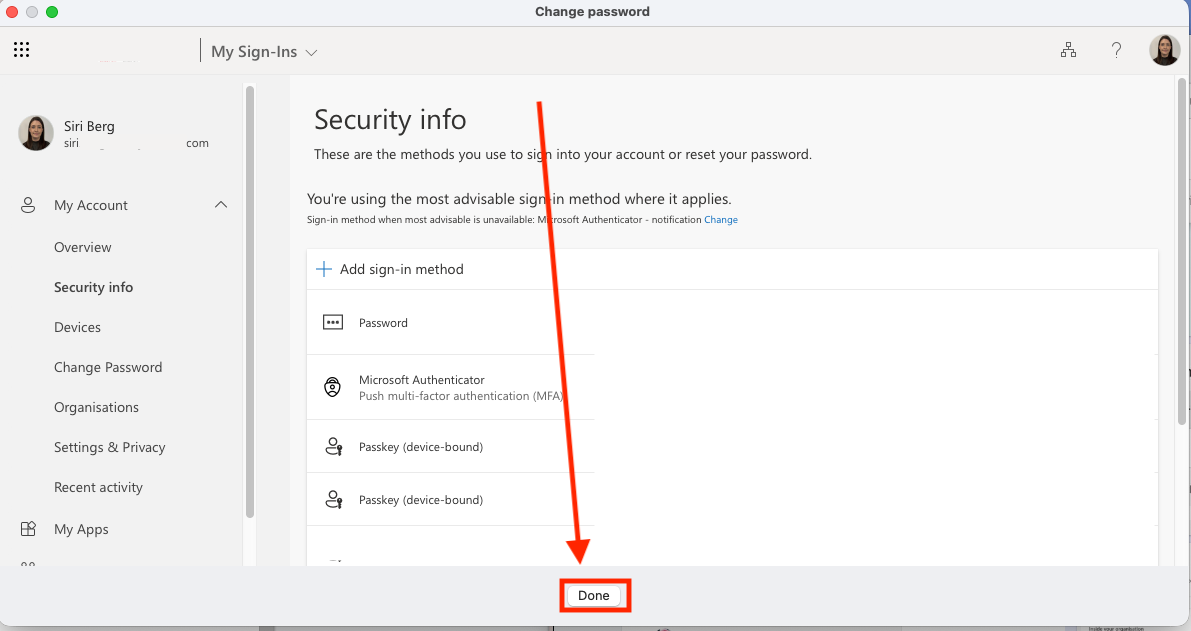
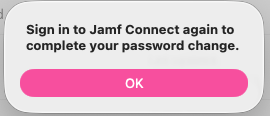
6, Then click Done. A new opo-up will appear. This pop-up lets you know that you must sign in to Jamf Connect. Click OK!
On macOS, Jamf Connect ensures that your local Mac login password stays synchronized with your Microsoft account.
If the sync step is skipped, the Mac may continue using an old password and prevent login.
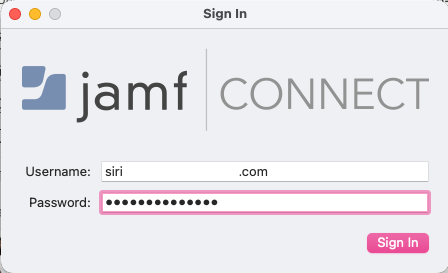
7, A new pop-up will again show up. Sign in with your NEW PASSWORD. Click Sign in.
8, Now type in your OLD PASSWORD. Click Sync.
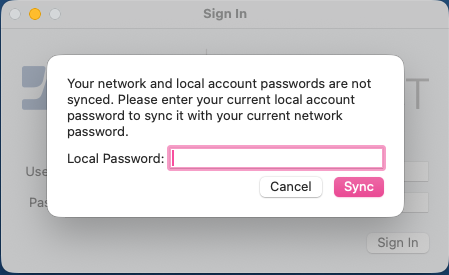
And you are done 😄