Yubikey - Install Yubikey:
About:
This document explains how to install and set up your YubiKey on both Windows and Mac devices.
Note: You must set up both YubiKeys (the primary and the backup) even if the backup will be used only in emergencies.
What are Yubikeys?
YubiKeys are hardware security keys that provide a more secure login experience for your company computer and mobile devices. They combine something you have (the YubiKey) with something you know (a PIN), offering phishing-resistant authentication. Learn more here: https://www.yubico.com?wvideo=10zzjaw8kr
If you touch the metal part of your YubiKey while in a chat or text application (Teams, Outlook, Notepad, etc.), it may type out a string of characters. In Teams, this may even auto-send the text.
- Workaround: Apply a small piece of tape over the metal bars until you need to use the key.
Windows:
1, Plug in the Small USB into your machine.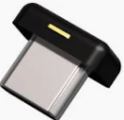
2, Go to https://myaccount.microsoft.com. Sign in with your work account.
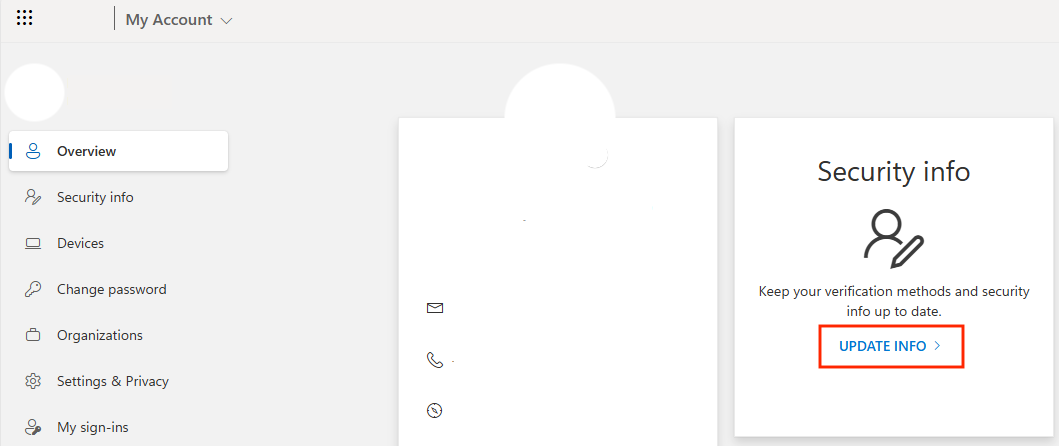
3, Select Update security info. Sign in with your user.
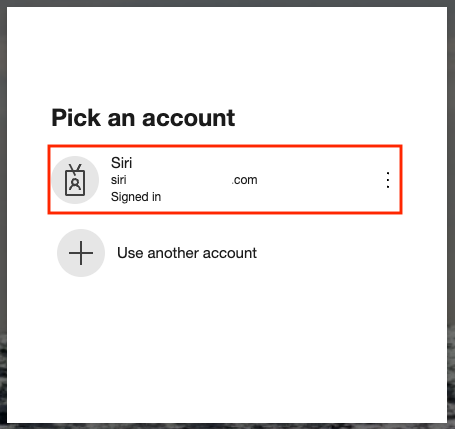
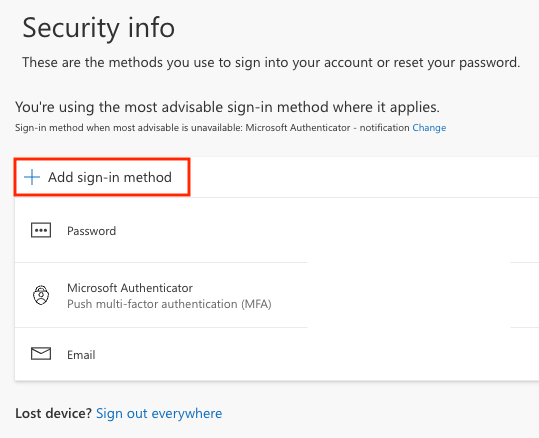
4, Click the option "Add Sign-in method".
5, Select Security Key.
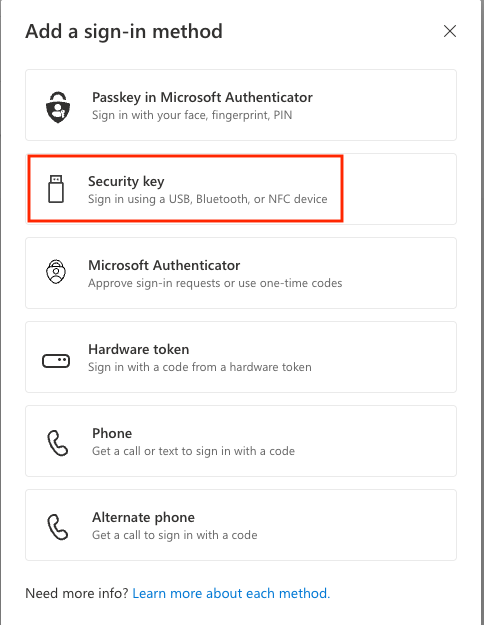
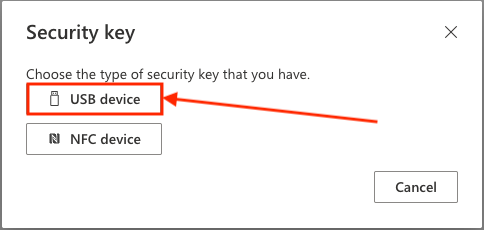
6, Choose the USB device*. Click Next.
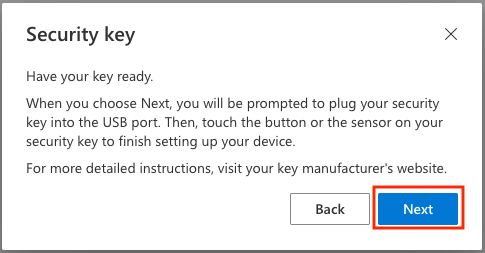
If you see this image, click BACK, and continue with the next steps below:**
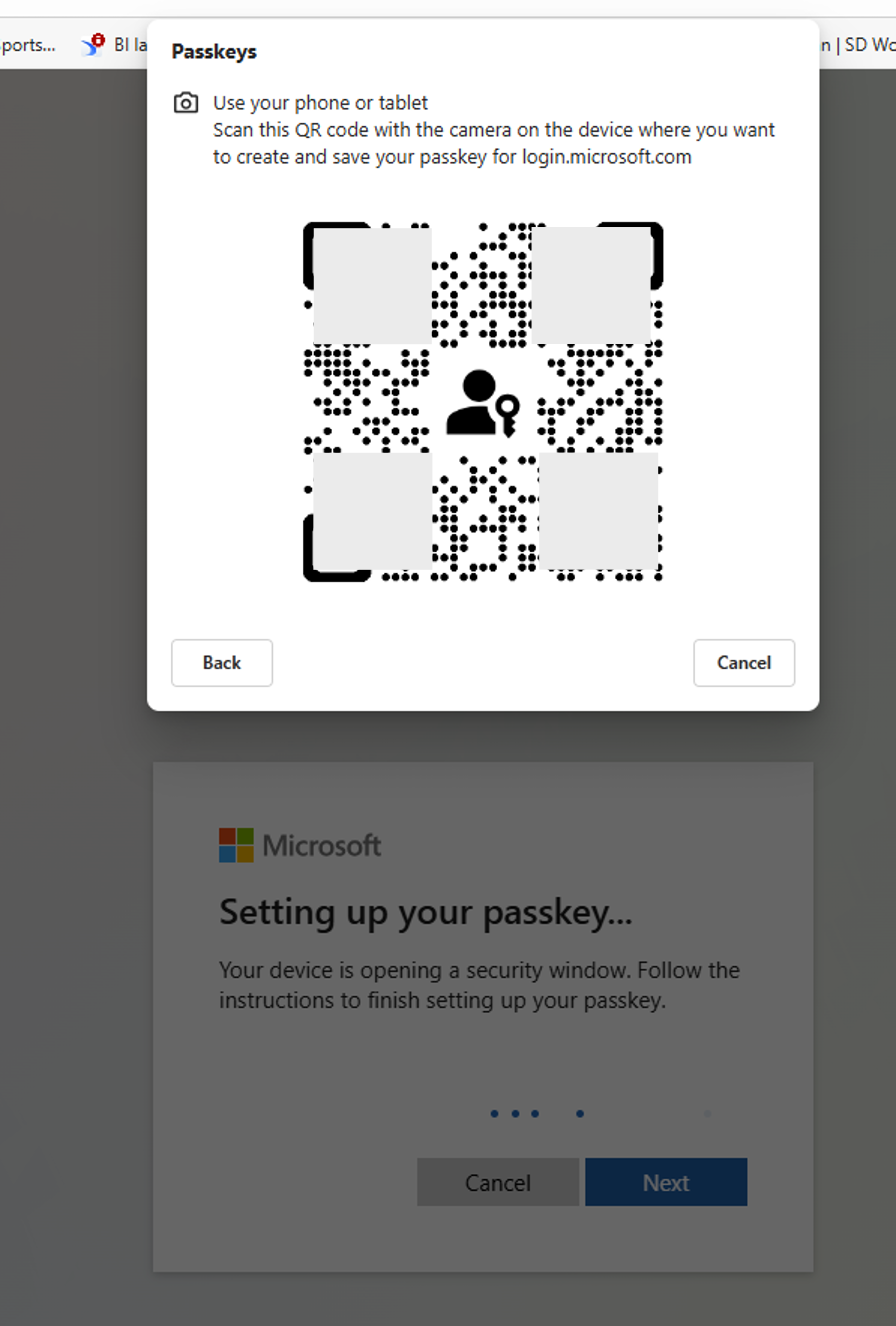
If you have a Bitwarden Browser Extentions enabled on your machine, make sure to sign out (ONLY IF YOU HAVE THE PASSWORD!) and close the application. Bitwarden will conflict with this setup.
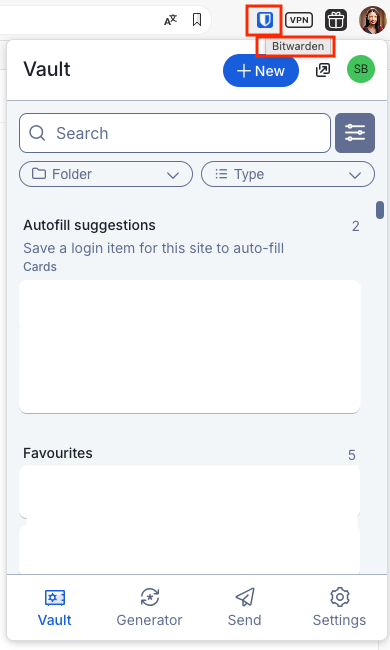
7, Click Security Key and then Next.
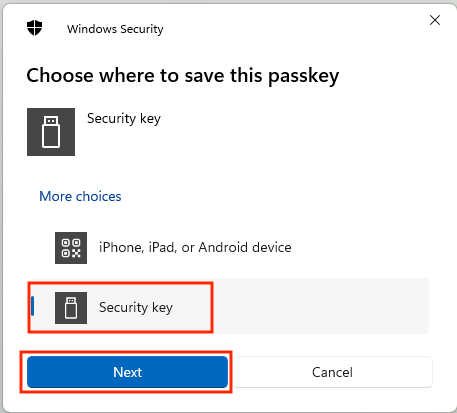
8, Click OK.
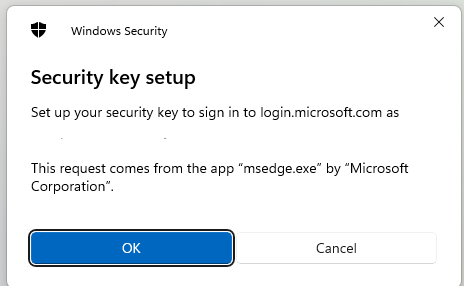
9, Click OK again.
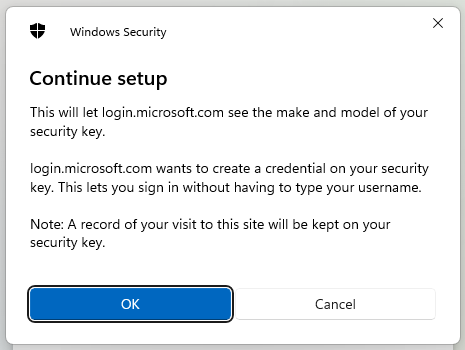
10, Create a pin code for this specific Yubikey and click OK.
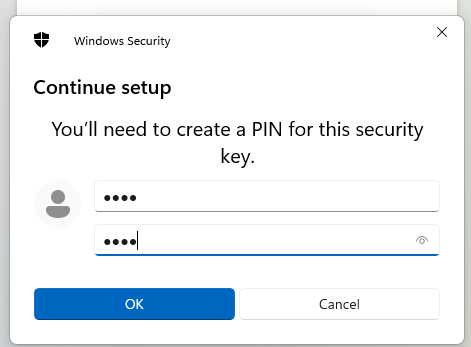
11, Now TOUCH the METAL part of your Yubikey to complete the setup, TWICE.
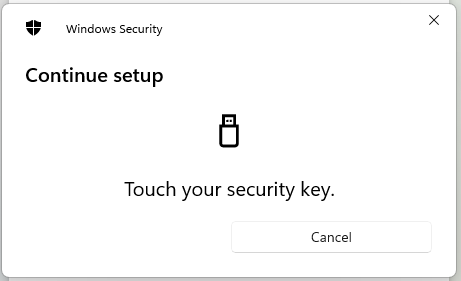
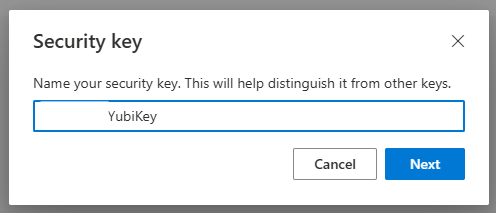
12, Name the Yubikey.
13, Click Done.
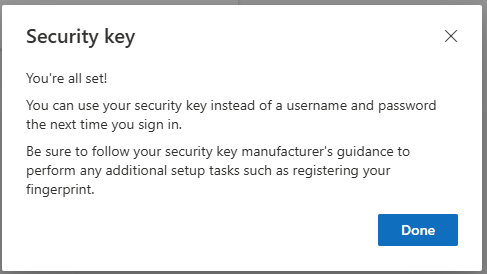
14, Now confirm the setup went through.
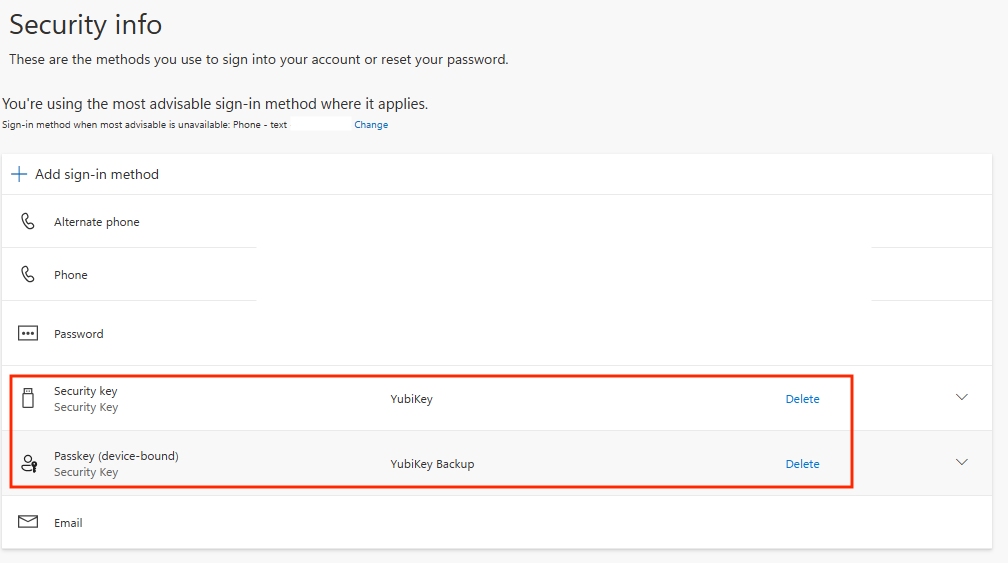
15, Now repeat the whole process with the BIG Yubikey.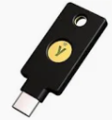
Macbook:
1, Plug in the Small USB into your machine.
2, Go to https://myaccount.microsoft.com. Sign in with your work account.
3, Select Update security info. Sign in with your user.
4, Click the option "Add Sign-in method".
5, Select Security Key.
6, Choose the USB device*. Click Next.
If you have a Bitwarden Browser Extentions enabled on your machine, make sure to sign out (ONLY IF YOU HAVE THE PASSWORD!) and close the application. Bitwarden will conflict with this setup.
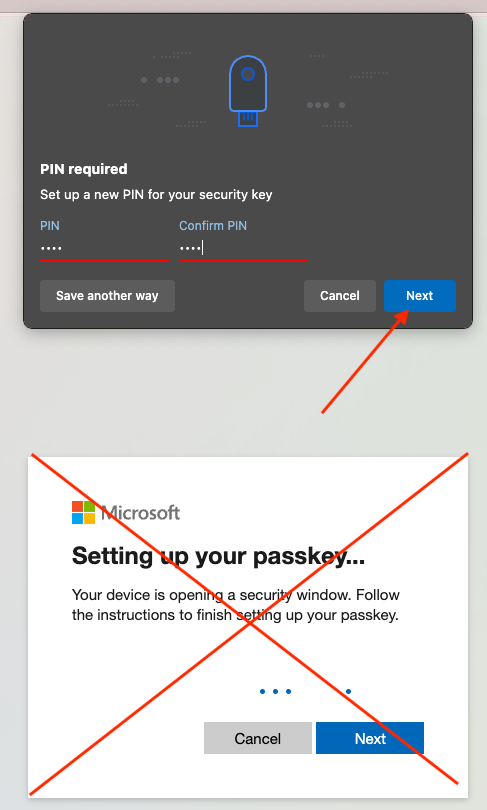
7, Create a pin code and click Next. Ignore the window underneath.
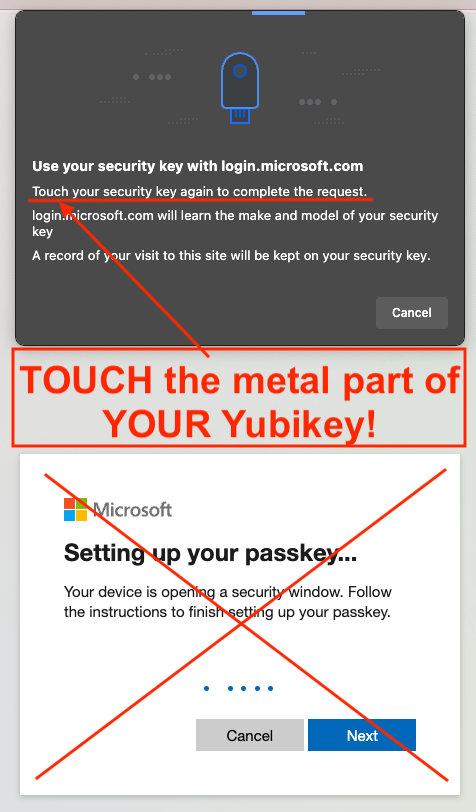
8, Now TOUCH the METAL part of your Yubikey to complete the setup.
9, Name the Yubikey.
10, Click Done.
11, Now confirm the setup went through.
15, Now repeat the whole process with the BIG Yubikey.
And you are done 😄