Excel - Repair a corrupted workbook:
About:
This guide explains how to repair a corrupted Microsoft Excel workbook using the built-in recovery features. It applies to Excel for Microsoft 365 and Excel versions 2013–2021.
When Excel detects a corrupted workbook during opening, it may automatically start File Recovery mode and attempt to repair the file. If this happens, follow the on-screen instructions and save the recovered file under a new name once the process is complete.
Manual repair (Open and Repair):
1, Open Excel.
2, Select File > Open.
3, Browse to the location of the corrupted workbook.
4, Select the file (do not double-click it). Select the arrow next to the Open button. Select Open and Repair.
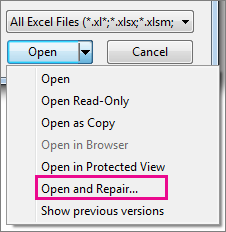
5, Choose Repair to recover as much data as possible.
6, If Repair fails, repeat the steps above and choose Extract Data instead. This option attempts to recover values and formulas only.
• Enable automatic backup copies of workbooks.
• Ensure AutoRecover is enabled and set to save at regular intervals.
• Store important files on reliable storage and avoid interrupting Excel while files are saving.
If disk or network errors prevent the workbook from opening, always copy the file to a local drive before attempting recovery. Recovered files should be saved with a new filename to avoid overwriting the original corrupted file.
And you are done 😄