SLack - Outlook Calendar Integration_AD:
About:
This document describes how to configure the slack outlook integration.
The integration allows your slack status to update dynamically based upon meeting status, and also vacation status if you use OOO (Out of Office) notifications.
Setup:
-
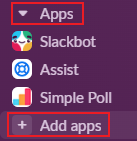
Look for 'Apps' and click 'Add apps'.
-
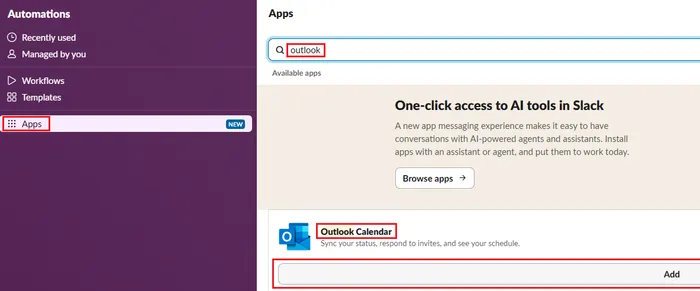
Search for 'Outlook' and click 'Add'.
-
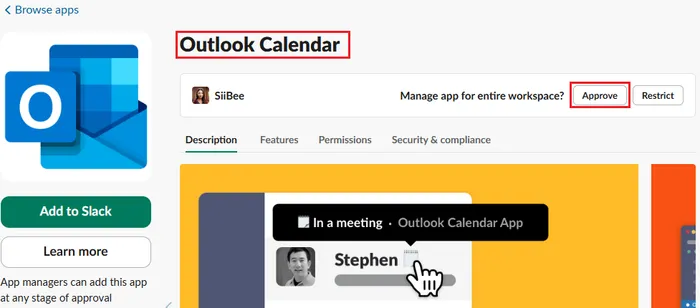
Click 'Approve' to grant Outlook Calendar access to Slack. Then click 'Add to slack'.
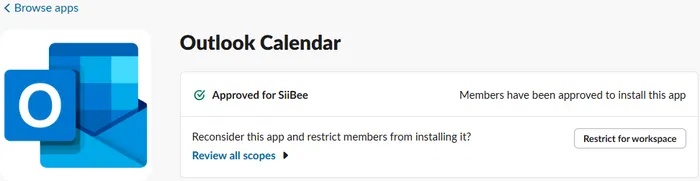
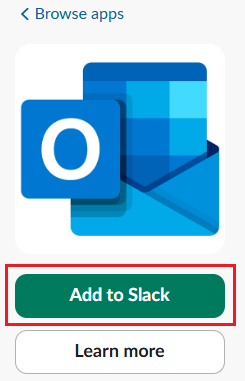
- Follow the prompts. Slack will go back to the main slack space when completed.
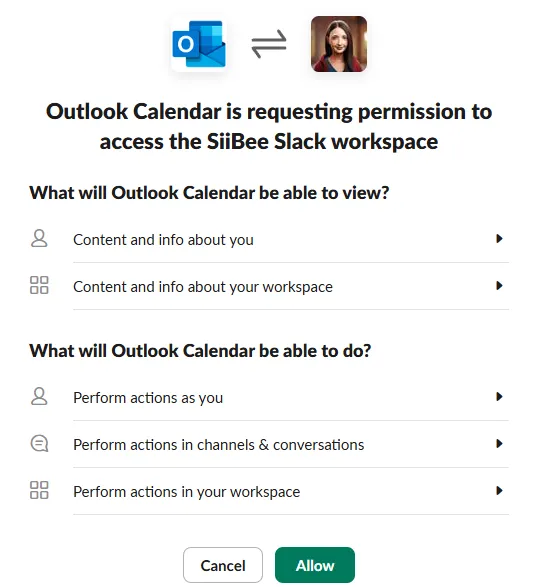
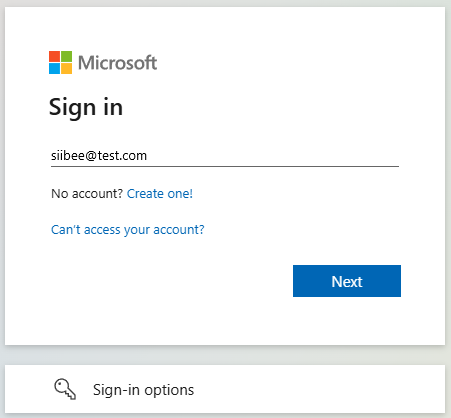
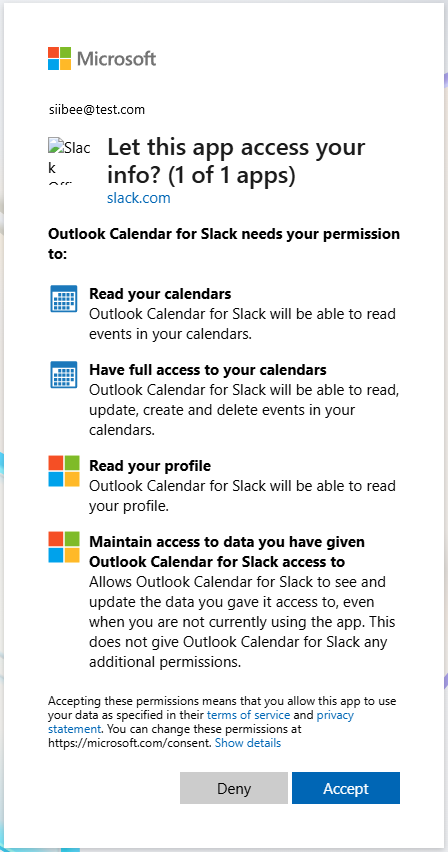
- Follow the prompts. Slack will go back to the main slack space when completed.
-
From the Outlook Calendar app’s Home tab, click Connect Calendar to add your calendar.
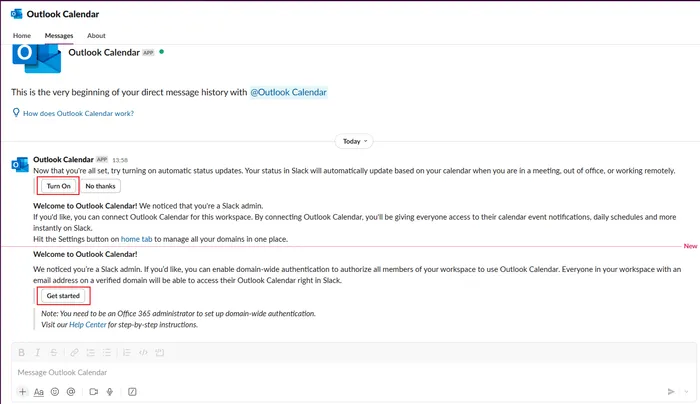
Click the 'Turn on' button and then the 'Get Started' button.
-
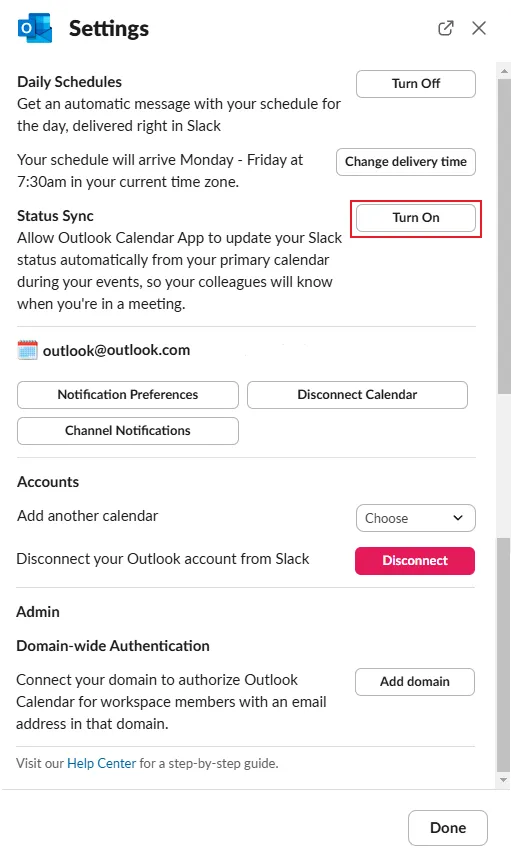
Then make sure that the Status sync is turned on. Click Save. I am honestly insure if this needs to be tweaked more, as I don't have an domain environment. I will update this as I learn more.
And you are done. 😄